Get to know the editor
The Motif Studio editor brings your design and the tools for changing it into one workspace. Select the part you want to change, and the relevant controls appear beside it.
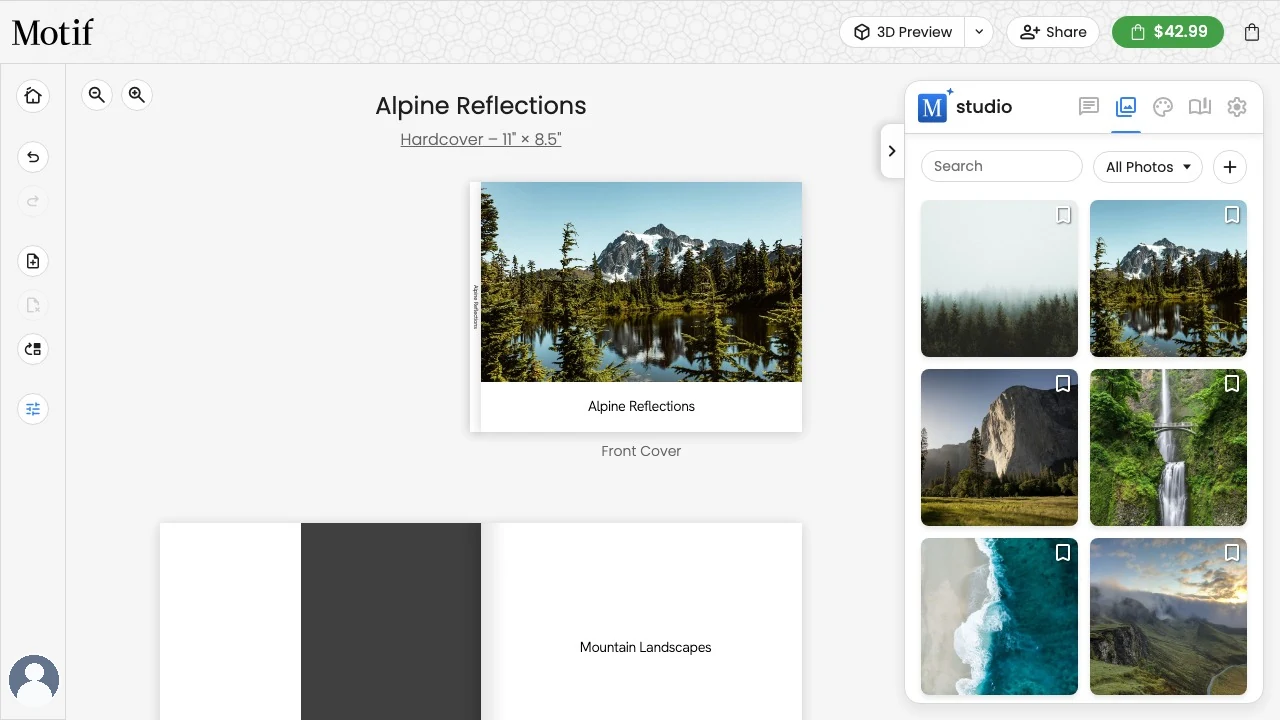
The main areas
- Project rail: Return to My Projects, undo or redo changes, manage spreads in supported books, open Grid and Snap Options for the alignment aids, and open your account menu.
- Project name: The name above your project identifies it in My Projects. It is separate from any title printed on the cover.
- Canvas: Select a photo, text box, map, page, or card face to edit it. Point to or tap an open part of a page to reveal page controls.
- Design panel: Move between Chat, Photos, Themes, and Products when those tabs are available for the current project.
- Preview, Share, and Add to cart: See your work as it will print, share it with others, or add it to the cart from the actions above the project.
If our support team sends a chat request on your behalf, it appears with a gold CS avatar and a gold border. Your own requests keep your usual avatar. Support requests remain marked when you reopen the project.
Select what you want to change
- Select a photo to use Crop, Rotate, or Filter.
- Select text to edit the words and adjust type, colour, alignment, and spacing.
- Select an open part of a page to show its colour, pattern, layout, and Page options controls.
- Select a journey map to edit its style, stops, route, labels, and framing.
Close an open item toolbar before selecting the page controls beneath it, especially on a smaller screen.
Choose Grid and Snap Options at the end of the project rail to show the page grid and control how boxes snap while you drag them. See Line boxes up with the grid.
Edit and rearrange
Photo books have two working views:
- Edit changes the contents and appearance of each page.
- Rearrange Pages opens with the familiar joined spreads. Click or tap an interior page to separate every spread into individual page tiles and select that page (on a touch screen, pressing and holding selects the whole two-page spread instead). Click an empty area to rejoin the spreads. Add Page appears above the grid, while the familiar Duplicate and Delete pill floats directly below the selected page. Drag the single page thumbnail toward another page and use the blue line to choose its new position. Undo and Redo in the rail work here too. Choose Done when you finish.
See Work with pages and layouts for detailed steps.
Preview your project
Use 3D Preview beside Share to review your saved design:
- Choose 3D Preview to see your project as a printed object you can turn in your hands.
- To review every page instead, select the arrow beside 3D Preview and choose PDF Preview. It generates a screen-resolution preview PDF and opens it in a new tab so you can check each page's printed layout.
- Choose Highlight Video from the same menu (photo books and calendars) to turn your project into a short highlight video. See Make a highlight video below.
In the 3D preview:
- Drag to rotate, and scroll or use the zoom slider to move closer.
- Use the on-screen arrows or the ← and → keys to open the cover and page through the spreads. The Spreads panel on the right jumps straight to any spread. On a hardcover, opening the cover lands on your first page with the dust jacket folded over the inside cover beside it, and the matching pairing appears at the back beside your last page.
- Double-click any page or the cover to jump straight to it in the editor: the preview closes and that page opens scrolled into view and briefly highlighted, ready to edit.
- The preview shows your saved design. If you were mid-edit, Motif Studio finishes saving before it opens.
The first time you open the 3D preview after changing your project, it takes a few moments to prepare: a Generating 3D preview... message appears over the editor, and the 3D view opens once your pages are ready. If you haven't changed anything since the last preview, it opens right away. Choose Exit 3D Preview to return to editing. On devices without 3D support, Motif Studio shows a message and a link back to the editor instead.
Make a highlight video
Motif Studio can turn your project into a short highlight video, a minute or so of your story set to music, in the spirit of a classic auto-made album movie. The video follows your project itself: the photos you placed, in page order, so it tells the same story your book or calendar does. It is available for photo books and calendars.
To make one, select the arrow beside 3D Preview and choose Highlight Video:
- Motif Studio sets your placed photos in motion in reading order — cover first, then your pages — cutting to the beat of the soundtrack. If your project holds more photos than the video can fit, nearby photos from the same page share a collage frame so as much of your story as possible stays in. Collage photos fill fixed panels without added borders or page backgrounds, with a gentle synchronized zoom inside each panel.
- The time needed to prepare the first video depends on your project and how busy the service is. Close the video window anytime and keep editing. The video keeps preparing, and reopening Highlight Video later shows the finished video right away.
- While a video is preparing, repeated requests wait for that video instead of starting another one. If a video can't be finished, choose Try again to prepare it again. If you make many videos in a short time, Motif Studio asks you to wait a little while before starting another.
- Choose Download to save the video as a 720p (1280 × 720) MP4 at 30 frames per second that you can share anywhere. In the macOS desktop app, Download opens the video in your default browser, where you can save it. In the iOS app, it opens in an in-app Safari view.
The video needs at least a few photos placed on your pages. Adding, removing, or rearranging photos refreshes the video the next time you open it.
Saving your work
Motif Studio saves edits as you work. If you leave while text is still saving, a Saving changes… message may appear briefly. Keep the page open until it finishes. An open phone text editor also counts as unsaved work until you choose Done or Cancel.
Some larger updates temporarily pause the editing controls. The on-screen message tells you what is happening, and the controls return when the update is ready.