Upload and creation problems
Photo preparation moves through Add Photos, Analyzing, and Laying out. The current stage and image count help identify where to start.
My files do not appear
- Confirm that the files are images. The photo picker accepts JPEG, PNG, HEIC/HEIF, DNG/TIFF, WebP, GIF, BMP, and AVIF.
- Try selecting a smaller batch to identify a file that cannot be read.
- Leave the page open while upload progress is visible.
Files that are not recognized as images are ignored and removed from the project instead of appearing as broken items in Photos. This includes hidden metadata companion files that can accompany photos copied from a Mac. If a photo uses an unusual export format, export a copy as JPG or PNG and try that copy.
The upload does not start
- Check that your internet connection is active.
- Close and reopen the + menu, then choose Upload Photos again.
- Try dragging the files onto the page.
- If one batch repeatedly fails, divide it into smaller batches.
Do not refresh while an upload is actively progressing. After a successful batch is processed, the Photos tab opens to Recent Additions.
Google Photos selection stalls
- Use Cancel on the picker overlay to close it cleanly.
- Open + → Select from Google Photos again.
- If prompted, sign in and allow the selection to finish before returning to Motif Studio.
- Keep Motif Studio open while the selected photos download and analyze.
If the Photos menu shows that Google Photos is linked but the account is not the one you want, use its sign-out control, then reconnect.
An interrupted Google Photos import can resume after you refresh or reopen the creation page. Check the visible image count before starting a second selection so you do not add the same photos twice.
Motif Studio asks for more photos
Photo requirements depend on the selected product and its options. Keep adding photos until the on-screen requirement is met. Skip for Now appears only when the chosen project can start without photos. For a desk calendar, that means the start month and year must already be chosen.
You can continue describing the look, story, or must-have moments in chat while photos are being prepared.
Analysis or layout appears stuck
- Check whether the image counter is still changing.
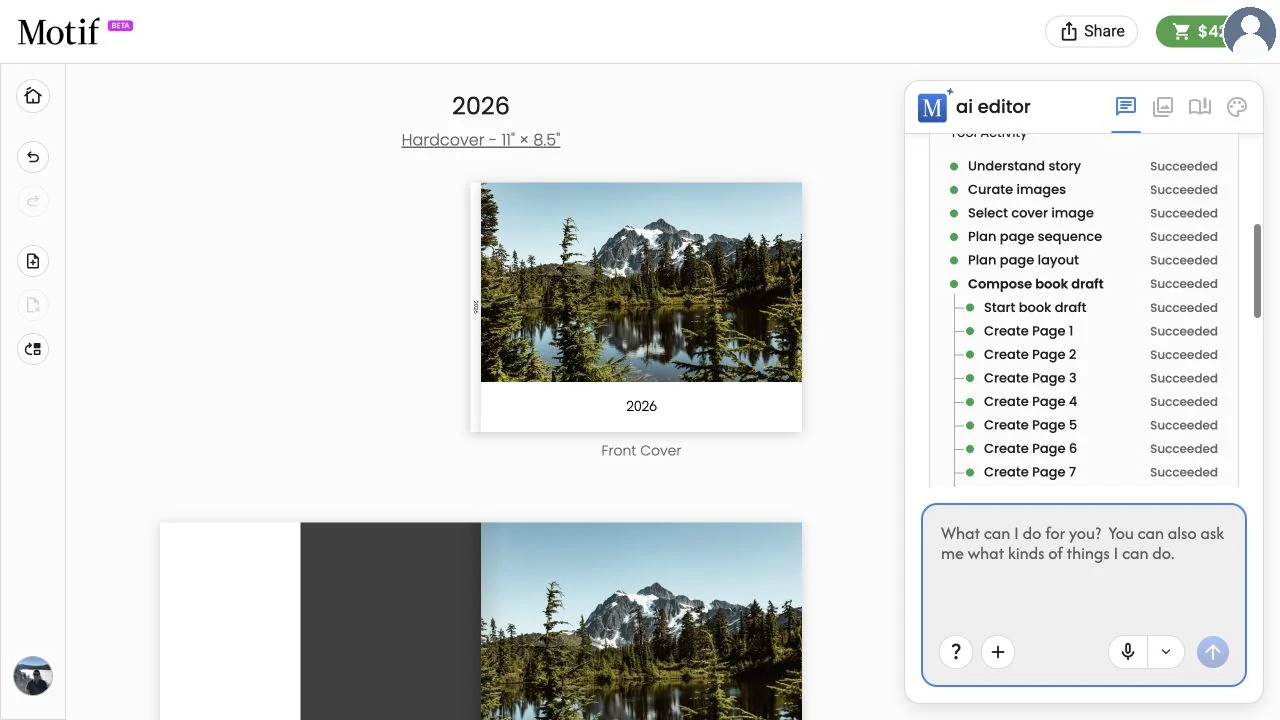
- Open the progress details to see the current step.
- Keep the tab open and avoid starting another upload while the current inventory is being prepared.
- If progress has not changed for several minutes and no upload is active, refresh once. The creation page restores the saved project status.
Do not create another copy immediately; the first project may still be completing in My Projects.
Still need help?
Open the account menu and choose Contact Support. Include the product you chose, whether the photos came from your device or Google Photos, the last visible stage, the image count, and a screenshot of the progress message.
Once the photos are ready, see Guide the design or Understand creation progress.