Photo books
Photo books give your story room to unfold. Motif Studio can organise a first draft from your photos, then lets you reshape the sequence, layouts, captions, maps, colours, and cover.
Choose a binding
Softcover
A flexible cover keeps the book light and approachable. It is a good fit for everyday stories, travel journals, family updates, and projects you may want in multiples.
Available sizes:
- 8 × 6 in
- 8 × 8 in
- 10 × 10 in
- 8.5 × 11 in
- 11 × 8.5 in
Hardcover
A rigid case and dust jacket give milestone projects and substantial stories a more formal presentation. Hardcover sizes are:
- 8 × 8 in
- 10 × 10 in
- 8.5 × 11 in
- 11 × 8.5 in
- 13 × 10 in
Layflat
Layflat books open flatter at the centre, making them especially useful for panoramic images and designs that intentionally cross a spread. Available sizes are:
- 8 × 8 in
- 10 × 10 in
- 11 × 8.5 in
- 13 × 10 in
Landscape formats fit wide scenes and group photos; square formats are flexible for mixed collections; portrait formats suit vertical images and text-forward stories.
Pages and capacity
Photo books begin with at least 20 interior pages. Maximum page counts depend on the binding:
- softcover books support up to 100 pages;
- hardcover books support up to 120 pages;
- layflat books support up to 130 pages.
Interior page counts are even so facing pages stay paired. If you request an odd count, Motif Studio uses a nearby even count within the selected format’s capacity.
For paper, cover, binding, dust-jacket, presentation-box, and protective-packaging details, compare Photo-book materials and packaging.
How the first draft is designed
Motif Studio considers photo dates, locations, orientation, quality, and visual similarity. A draft may:
- organise photos chronologically or into meaningful chapters;
- leave out near-duplicates, unusable frames, and screenshots or documents that do not carry normal photo metadata;
- pair portraits and landscapes with better-fitting layouts;
- use panoramic photos as wide hero moments;
- add short captions selectively, unless you request a different approach;
- add journey maps for travel stories whose photo locations support a clear regional route.
Tell Motif Studio what matters before or during creation. Guide the design includes practical prompts.
Edit a photo book
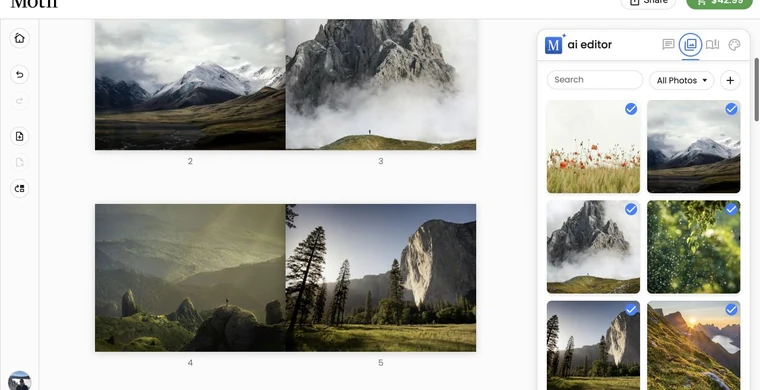
In the editor, you can:
- add, replace, move, crop, rotate, and filter photos;
- change the layout or background of a page;
- add and style text;
- add or delete spreads within the product’s limits;
- rearrange interior pages;
- apply a coordinated theme;
- ask Chat to make a focused or book-wide change;
- use Undo and Redo for recent changes.
Learn the controls in Pages and layouts and Work with photos. The add-photo workflow applies to both pages and covers.
Change the book format
Open Products in the editor to see compatible photo-book and memo-book choices. A size or binding change can alter page geometry, cropping, and available page counts.
- Review the target format and price.
- Choose the new option.
- Wait for the project to update.
- Review the cover, every spread, text wrapping, and photo crops.
- Use Undo if the conversion does not work for your design.
A design that fits one shape may need different crops or text placement in another. A successful conversion does not mean every creative choice is ready to print.
Before ordering
Check the cover, spine or jacket text, panoramic seams, page order, cropped faces, captions, and photo-quality warnings. Then follow Review before ordering.